Theme block – Withdrawal form on the storefront
Overview
The withdrawal form for your customers is added as a theme block (“EU Withdrawal Form”) on the storefront. Customers open it via a button, select their order, and submit the withdrawal. Logged-in users see a list of their orders and do not need to enter email and order number. Guests enter email and order number to view their orders.
Adding the block
- In Shopify Admin, open Online Store → Themes.
- Click Customize (Theme Editor) for the active theme.
- Select the page where the form should appear (e.g. a “Withdrawal” or “Contact” page).
- In the desired section, choose Add block.
- From the block list, select “EU Withdrawal Form” (or the name shown in your Theme Editor language).
- Remember to Save.
The block renders a button (e.g. “Request withdrawal”); a click opens the form in a popup/modal (overlay).
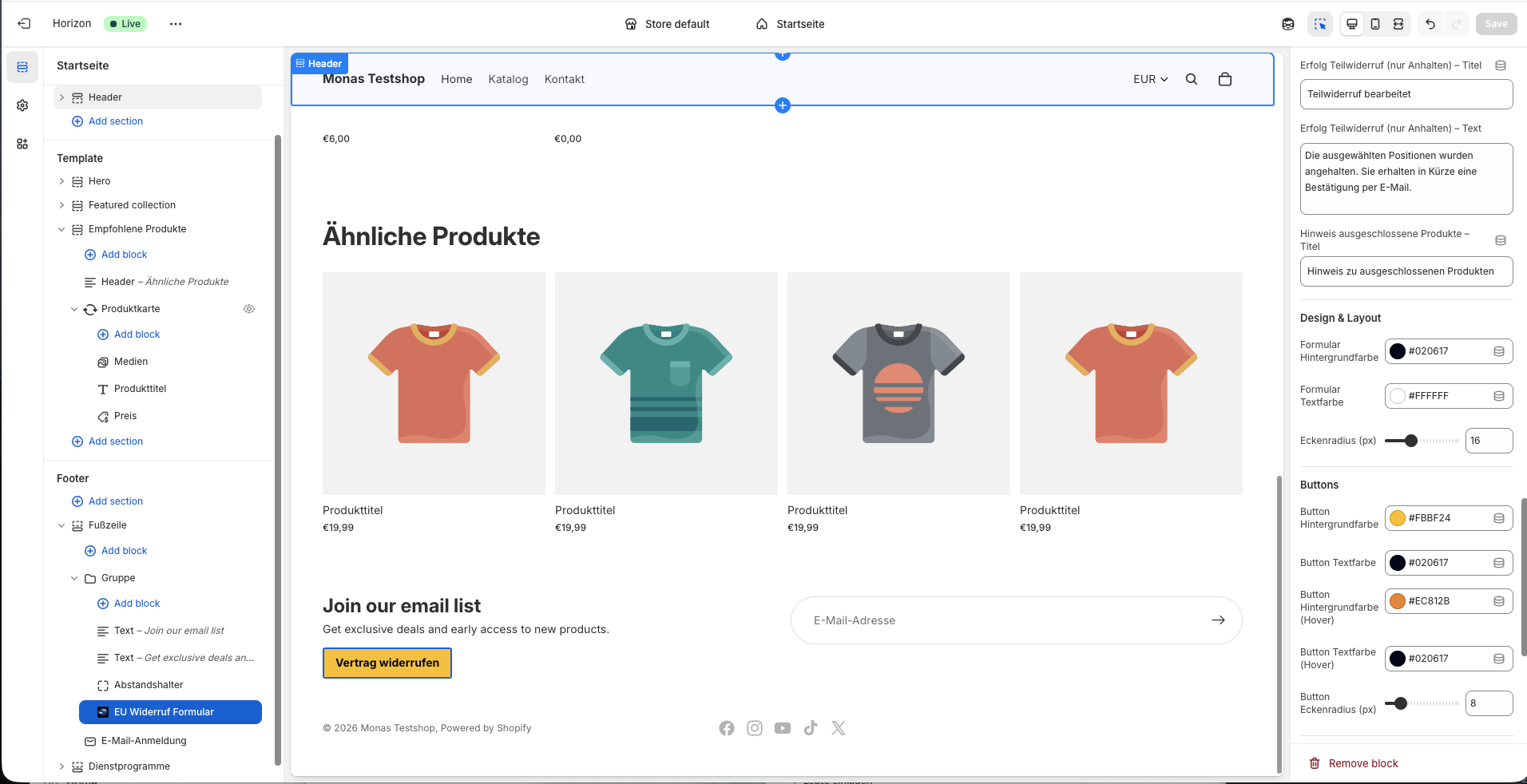
Block settings (Theme Editor)
In the Theme Editor you can adjust, among other things:
- Headline – e.g. “Request withdrawal”
- Button text – Text of the button that opens the form
- Colours – e.g. button background, button text, form background, border
- Verification – Title and text for the “Verify identity” step (email, order number) and optional code entry
- Refund policy URL / Terms of service URL – If your shop uses different policy URLs than Shopify’s defaults (
/policies/refund-policy,/policies/terms-of-service), enter your URLs here. - Privacy policy URL (optional) – If set, a privacy notice is shown below the confirmation checkbox.
- Confirmation texts – e.g. success messages after submission (cancellation, return, partial withdrawal)
- Support contact – Default text for “For questions contact …”
- Excluded products notice – If you exclude products from withdrawal (see Product exclusion)
Field labels match those shown in the Theme Editor.
Access and requirements
The form is available in the free tier (Free/Basic) as well. For it to be visible to your customers, the app must be enabled for your shop – regardless of whether you use Free, Pro, or Plus. The free tier includes the basic withdrawal form; advanced options (e.g. configurable period, partial withdrawal) are part of Pro or Plus (see Setup – Subscription tiers).
The app sets a shop metafield (subscription_tier). If there is no valid access (e.g. app not active), the form is hidden on the live store; in the Theme Editor a notice may indicate that the block is currently restricted.
After a subscription change or reinstall, open the app once in Admin (e.g. Dashboard) so the access status is updated.
Popup/modal embedding
The block is only offered as a popup/modal: it renders a button/link; a click opens the form in an overlay. This is suitable for pages where you only want a short notice, or when you place the block on a dedicated “Withdrawal” or “Withdrawal rights” page – the button appears there and the form opens in the overlay.
Additional block: Withdrawal exclusion notice on the product page
Besides the withdrawal form, the app provides the theme block “Withdrawal exclusion notice” for the product page. It tells customers when a product is excluded from withdrawal. Setup and customization: see Product exclusion – Theme block.